At a glance.
SchulKI is a product of bytesatwork GmbH and the learning platform of MeineLOKALEKI.de. It runs on an AI server at the school, for example on the ASUS Ascent GX10.
Local at school
The language models run on the server in the school network. Chats, exam answers and student data are not sent to external AI providers, and there is no dependence on the cloud.
One platform, five roles
Students, teachers, school management, administration and the overarching super admin each see their own interface. Permissions are checked on the server, not just hidden.
In the browser, on any device
SchulKI runs on PC, tablet and smartphone, with nothing to install. The school creates users itself: one by one, a whole class at once or by CSV import.
For students.
A patient learning companion that answers at any time of day.
The learning chat
Students pick a subject, for example maths, German, English, history, biology or physics, and start a chat. The AI explains at the right level, gives feedback on answers and asks follow-up questions instead of giving away the solution straight away.
- Photograph tasks or attach images, PDFs and text
- Sketch in the built-in drawing pad and have the AI evaluate it
- Ask questions by voice
- Sort chats by subject and search them
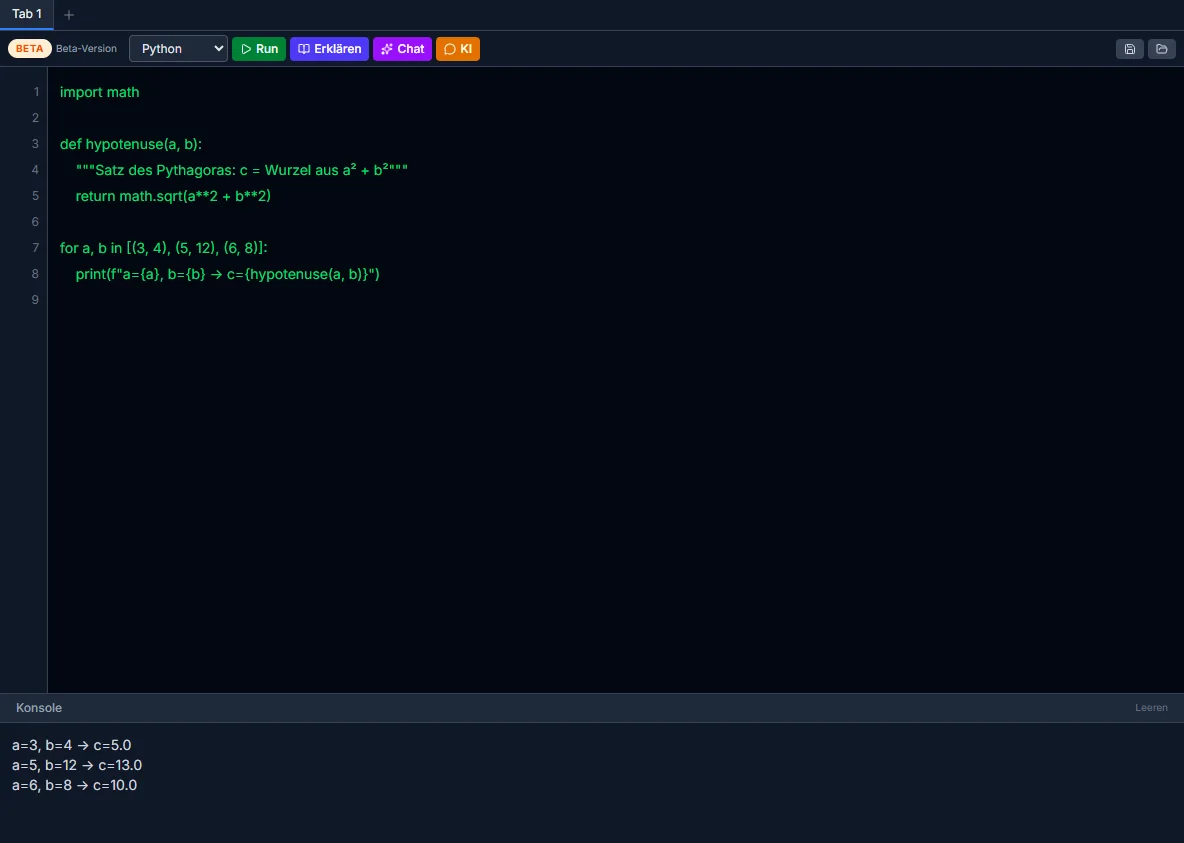
Code assistant Beta
The code assistant acts as a dedicated editor in the browser for computer science lessons. Students write code, run it and see the output directly in the console. If they have questions or something runs wrong, the AI helps.
- Run Python, preview HTML and CSS
- Have the AI explain code
- Ask questions about your own code in the chat
- Save snippets and use several tabs
Digital notebook Beta
Students can create notebooks and folders for every subject. They can also write or draw with a pen, keyboard and mouse, with a selectable size for each note.
- Ballpoint pen, fountain pen, highlighter, eraser, lasso and text
- Page templates such as ruled, zoom, undo and redo
- Have handwriting recognised, save it as an image or print it
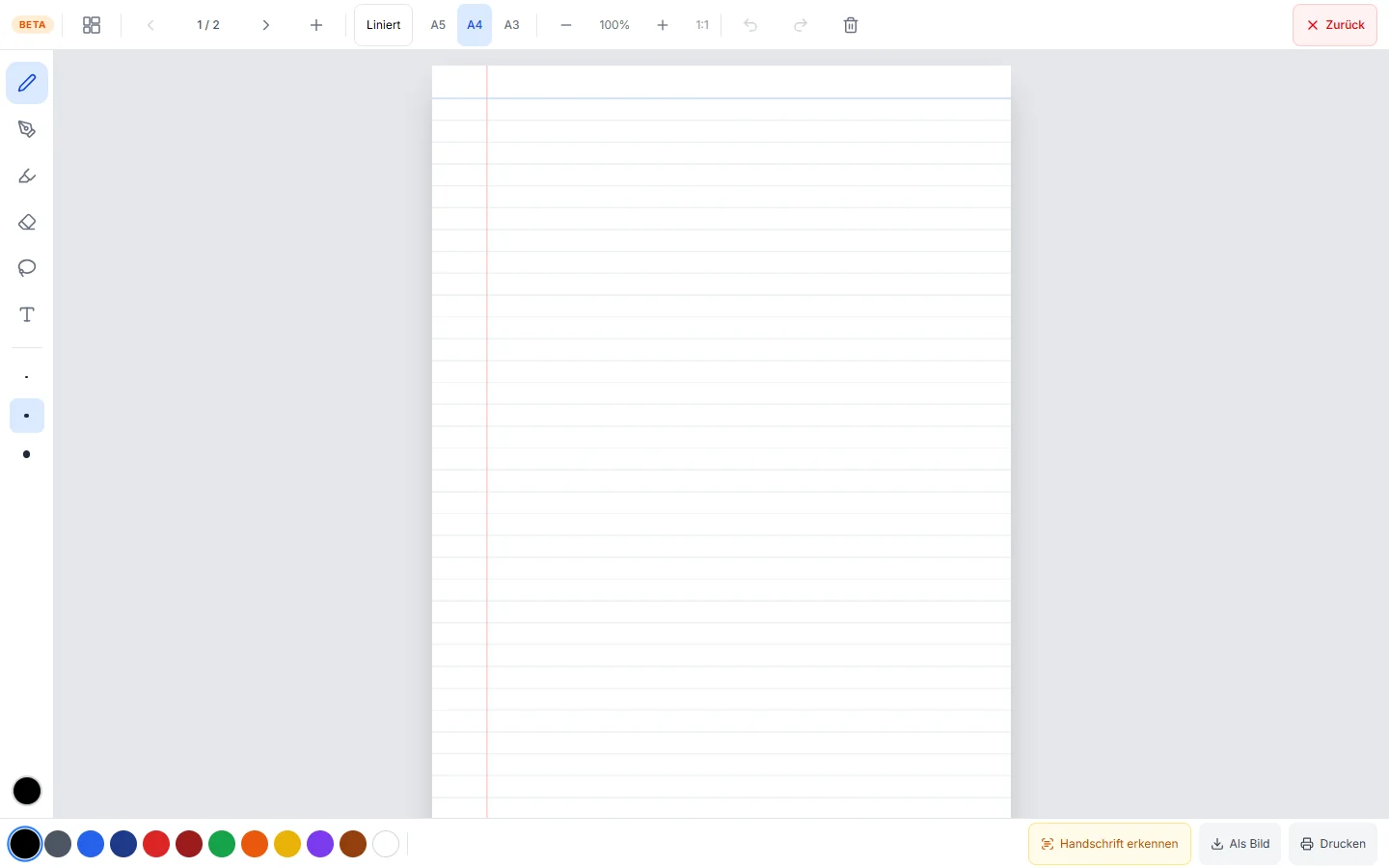
Image generator
The AI creates images for lessons, for example cell cross-sections or anatomy, in a scientific, realistic or illustrated style. The images are created locally, not in a cloud.
3D models
Teachers upload 3D models in GLB or GLTF format. Students rotate and inspect them right in the browser, for example in science lessons.
Lesson folders Beta
Teachers organise documents, 3D models and AI chats into folders, for example per teaching unit.
For teachers.
SchulKI gives teachers relief from routine work, an overview of their classes and control within seconds.
Overview and moderation
In the students tab, teachers see their students' chats. The AI checks every student message. Conspicuous content such as insults, racism or ethically unacceptable requests is marked in red, and the student gets a notice straight away.
- A counter and marking show at a glance where action is needed
- Teachers write directly into the chat, without the AI. The student sees a “message from the teacher”.
- Filter by class
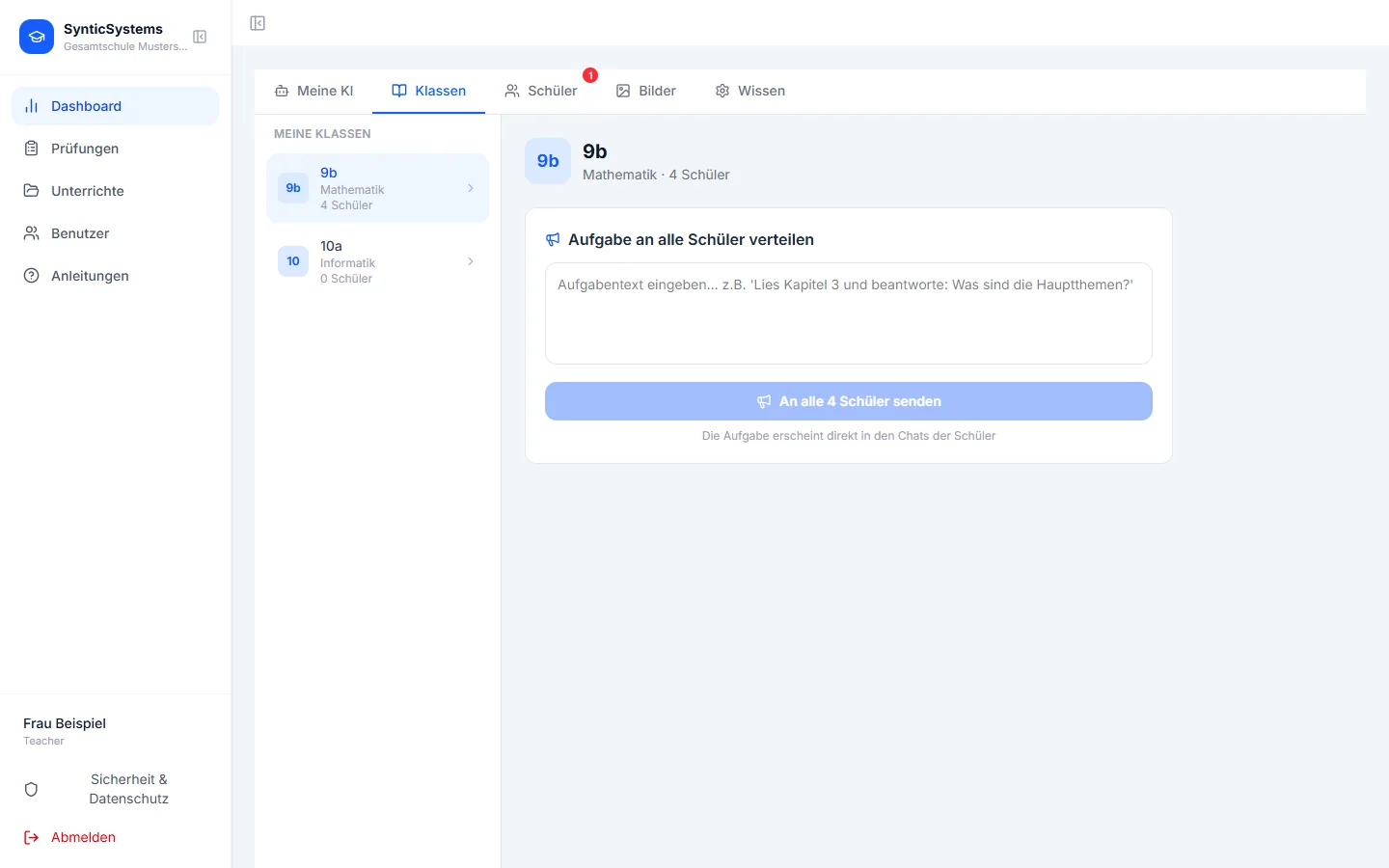
Classes, tasks and a personal AI assistant
Teachers send a task, also with a PDF attachment, to all students of a class with one click. The task appears directly in their chats. There is also a personal AI assistant for lesson preparation, letters to parents, report texts and subject questions.
- Class chats in which all students of a class work with the AI together
- The assistant knows the school knowledge that has been stored
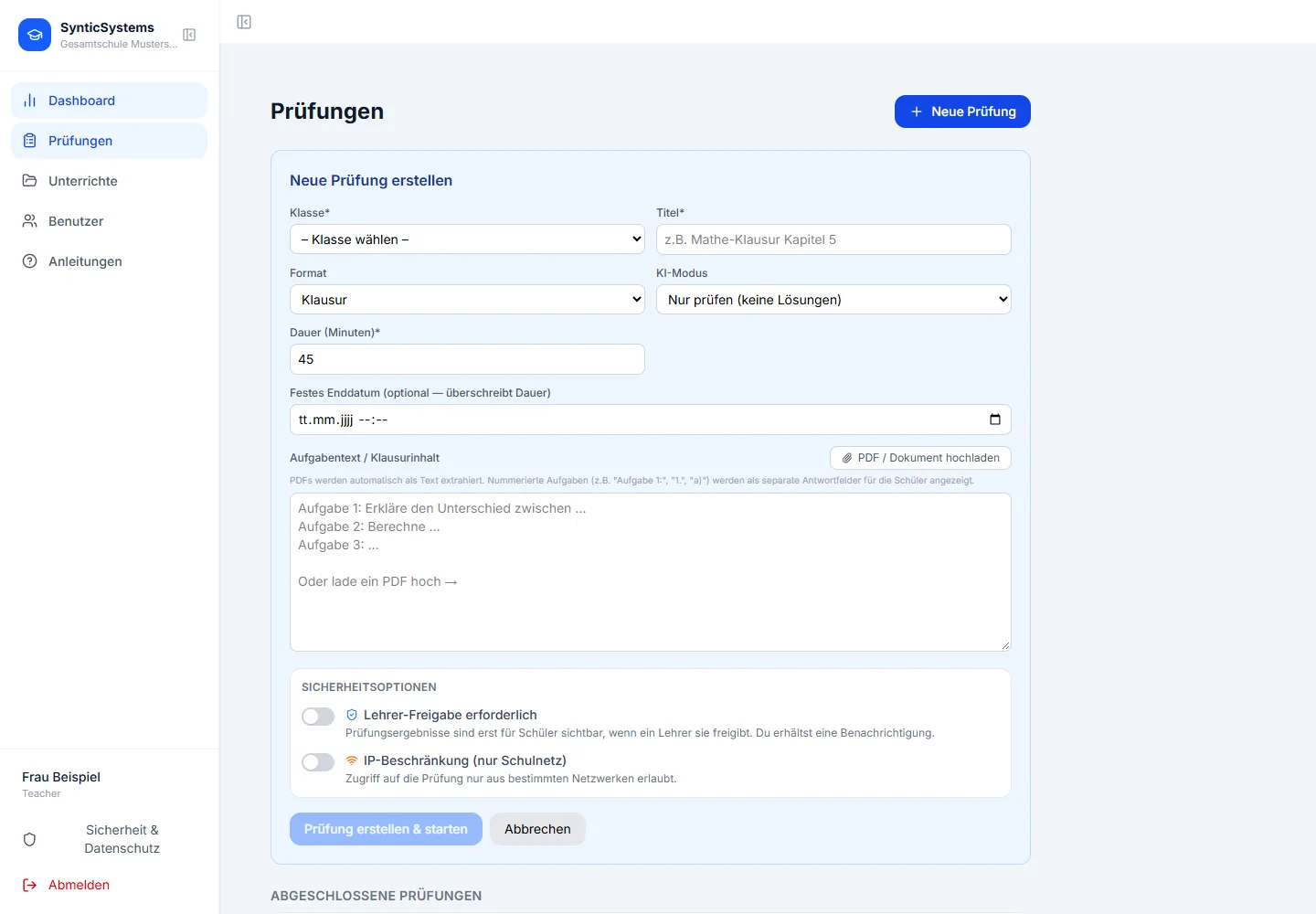
Exam mode
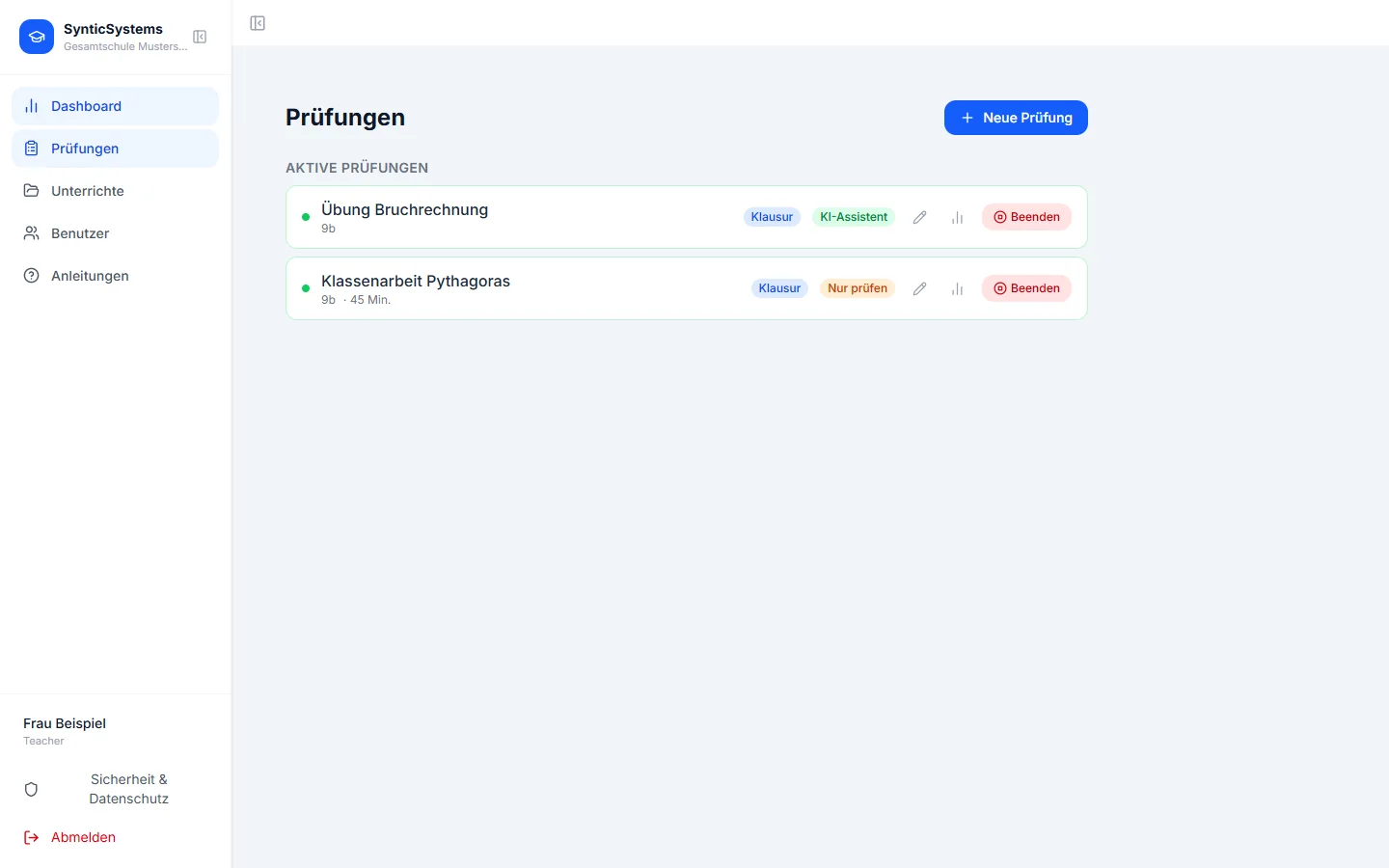
Teachers create an exam with a few details and decide how much help the AI may give. Students work on it in a dedicated text editor and hand it in at the end. After that, the answer is locked.
- AI mode: off, “Check only” (no solutions) or assistant
- Duration in minutes or a fixed end date
- Tasks as text or PDF, numbered tasks become separate answer fields
- Optional: release of the results by the teacher and access only from the school network
Results and evaluation
For every exam, teachers can see how the class worked: number of messages and AI requests, marked content and the quality of the questions to the AI. On request, an AI analysis starts with notes on relevance to the task, own work and risk of plagiarism.
The evaluation is an aid for the conversation with the student. The grading stays with the teacher.
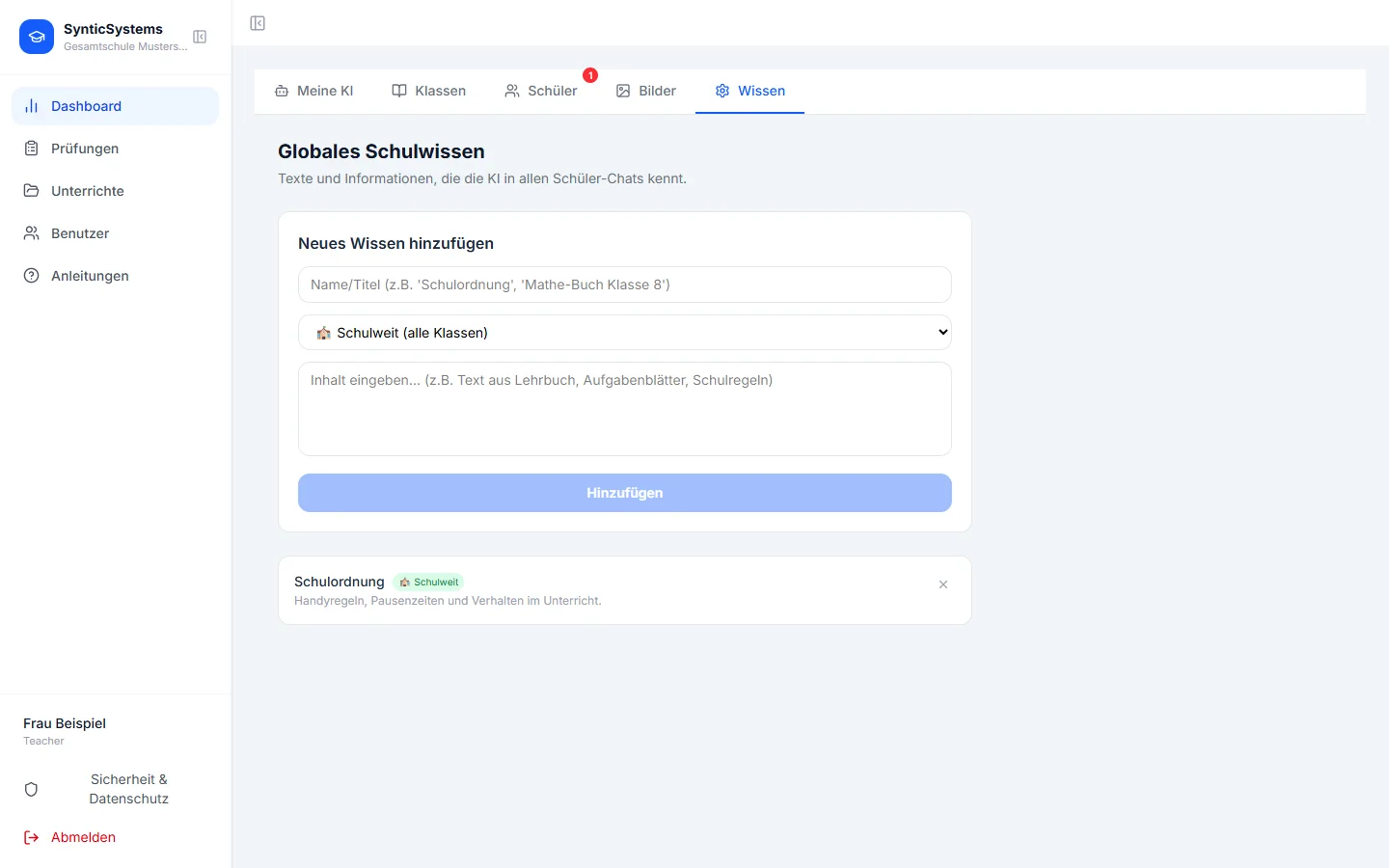
School knowledge for the AI
School rules, curriculum, specialist texts, worksheets: whatever teachers store, the AI takes into account in its answers. The knowledge applies school-wide or to a single class. From PDFs, the AI reads the actual text, not just the file name.
For administration and data protection.
The school keeps control of accounts, classes and legal texts.
Users and classes
Administration and school management create schools, classes, year groups and courses and manage the users.
- Create single users or a whole class at once, the login details are shown straight away
- CSV import with column mapping and preview
- Reset passwords, deactivate accounts
- Assign several classes to a teacher
Consent and deletion
At the first login, users have to read and accept the terms, the privacy policy and the rules of use, and only then does the platform open. Anyone who wants their data deleted submits the request right in the interface. The administration approves it and the data is anonymised.
Maintain legal texts yourself
The overarching super admin edits the terms, the privacy policy and the rules of use in one editor. Changes apply immediately and appear in the consent dialog for new users.
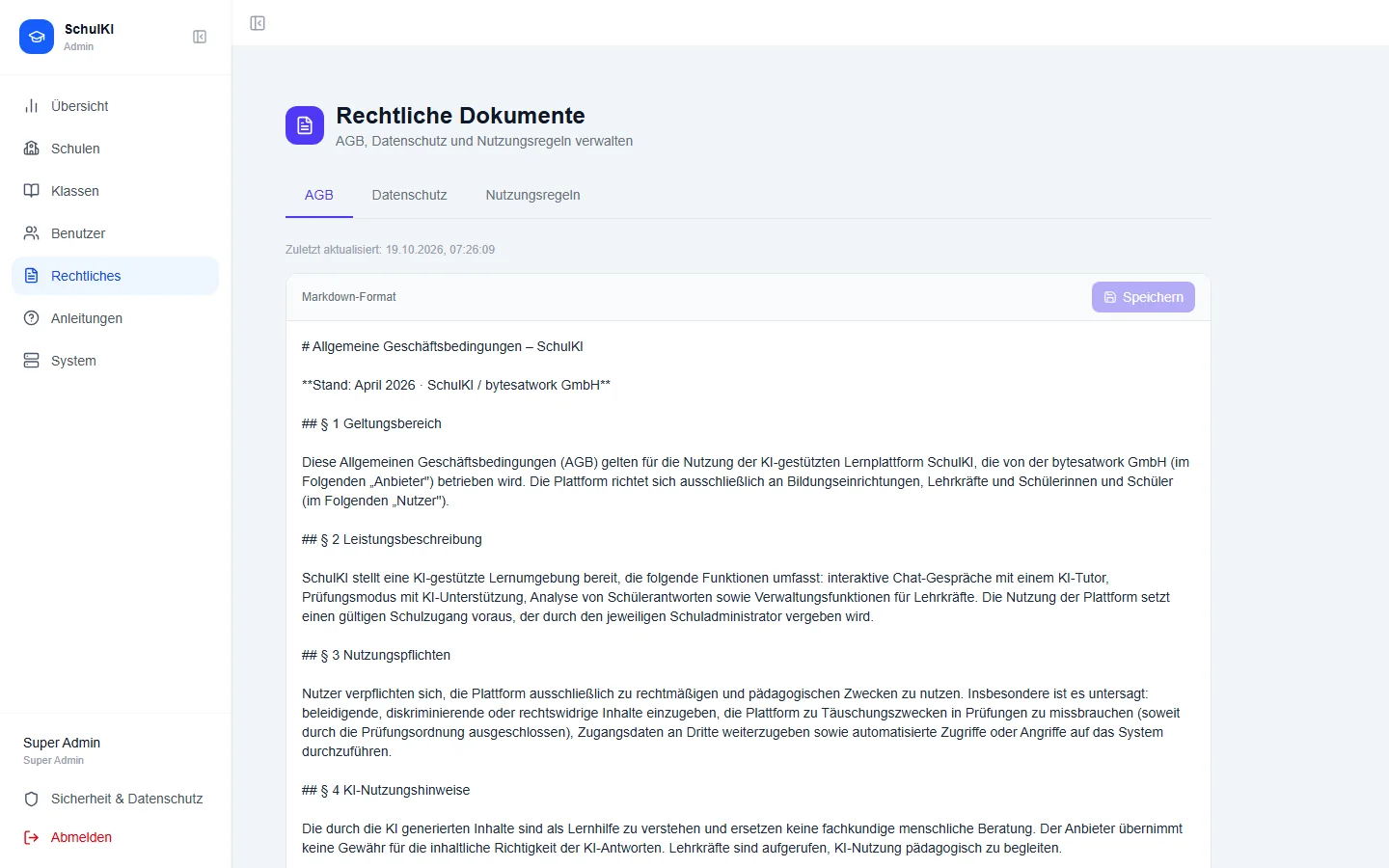
All screenshots come from a test environment with invented sample data.
Five roles, clear permissions.
| Role | What it does |
|---|---|
| Students | Learns in the chat with the AI, uses the code assistant, notebook and image generator and takes part in exams. |
| Teacher | Sees the students' chats, distributes tasks, creates exams, maintains school knowledge and uses the personal AI assistant. |
| School management | Manages classes, teachers and students of its own school and handles deletion requests. |
| Administration | Creates schools, classes and users, imports by CSV and handles deletion requests. |
| Super admin | Highest level: maintains the legal texts, sees the system status and manages all users. |
Local AI + clear permissions = a school that keeps control.
Login
- Passwords are stored only as a hash, never in plain text.
- Optional two-factor login with an authenticator app.
- Repeated login attempts are slowed down, expired sessions log out automatically.
Access
- Every role sees only its own area, checked on the server.
- Exams can be restricted to the school network.
- Security-relevant events are logged.
Data
- The AI runs in the school network, nothing is sent to external AI providers.
- Data deletion can be requested right in the interface.
- The school maintains the legal texts itself.
Frequently asked questions.
Does SchulKI need the internet?
Not for the AI's answers, because the models run on the server in the school network. The server needs the internet for updates and, if you want it, for remote maintenance.
Does every student need an account?
Yes. The school creates the accounts, one by one, as a whole class or by CSV import. Students do not need a private e-mail address for this.
Who sees the students' chats?
Teachers can view their students' chats. This is stated in the privacy policy, which every user has to accept at the first login.
Can the AI help students cheat in exams?
The teacher decides for each exam: the AI can be switched off completely, only check answers without giving away solutions, or help as an assistant. The evaluation shows how intensively the AI was used.
What does Beta mean?
The code assistant, the digital notebook and the lesson folders are usable but still in trial. They are marked accordingly in the interface.
Can I try SchulKI?
Yes. “Try it” takes you to the demo. “Rent now” takes you straight to the offer.
The AI for your school.
Rent the device or try the demo. We answer questions within 48 hours.
SchulKI in seven videos.
For teachers, students and school management: this is what working with SchulKI looks like. With subtitles and chapters you can jump to.
-
For teachers: preparing lessons
Create a worksheet with the AI, see classes and the chats of your students, maintain school knowledge.
Chapters
-
Creating and evaluating exams
Create a new exam with tasks and rules, start it and evaluate the results.
Chapters
-
For students
Choose subjects, ask a question, understand the answer, use images and notebooks.
Chapters
-
For school management and administration
Overview, classes and courses, users and new accounts.
Chapters
-
For teachers: organising lessons
Create a lesson folder, store school knowledge, find help and the security settings.
Chapters
-
For students: digital notebooks
Signing in and using the digital notebooks, still in beta.
Chapters
-
For school management: creating accounts via CSV
Choose a CSV file, map columns and class, create many student accounts at once.
Chapters